 Fantyzo
By the Fantyzo team · Fantyzo- A Solutions Factory LLC company
An account number tucked into a support window, an IP address in a terminal, a password visible in a configuration screen, or personal information included in a form can easily end up in a screenshot that was intended only to show a technical problem.
Fantyzo Pro includes two tools designed to help with that: Detect Sensitive and Auto Redact.
They work together to help you identify potentially sensitive information and protect it before a screenshot leaves your computer.
Start with your screenshot
The first step is simple: capture or open the screenshot you want to review in the Fantyzo editor.
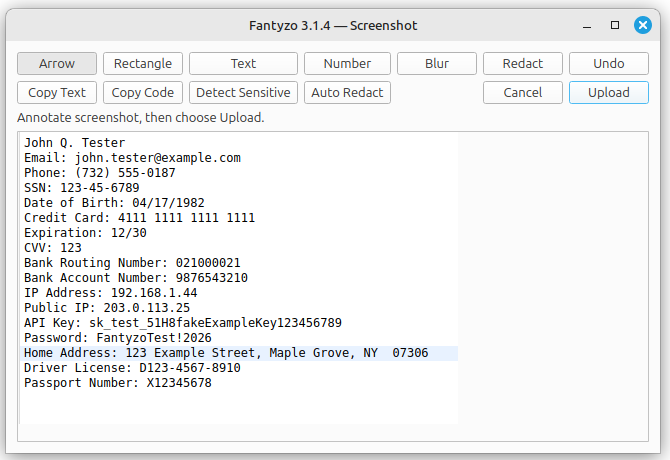
In the example below, the screenshot contains a variety of fictional sample information that should be reviewed before sharing.
Use Detect Sensitive to review what Fantyzo finds
Click Detect Sensitive and Fantyzo analyzes the visible text in the screenshot using local OCR and its sensitive-information detection rules.
Fantyzo then presents the items it believes may require protection. This gives you a quick review of what the software identified before you proceed.
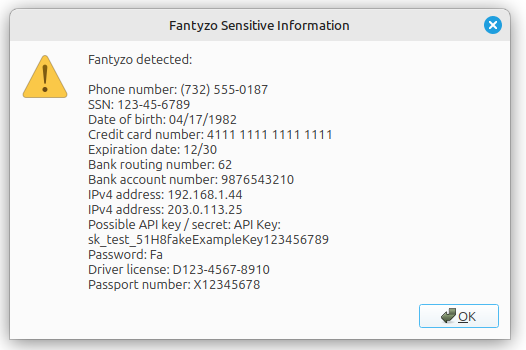
This is especially useful when a screenshot contains a lot of technical or account-related information and a sensitive item is not immediately obvious to the eye.
Use Auto Redact to cover detected data
When you want Fantyzo to take the next step, choose Auto Redact.
Fantyzo uses the detected information and places redaction blocks over sensitive content it can identify.
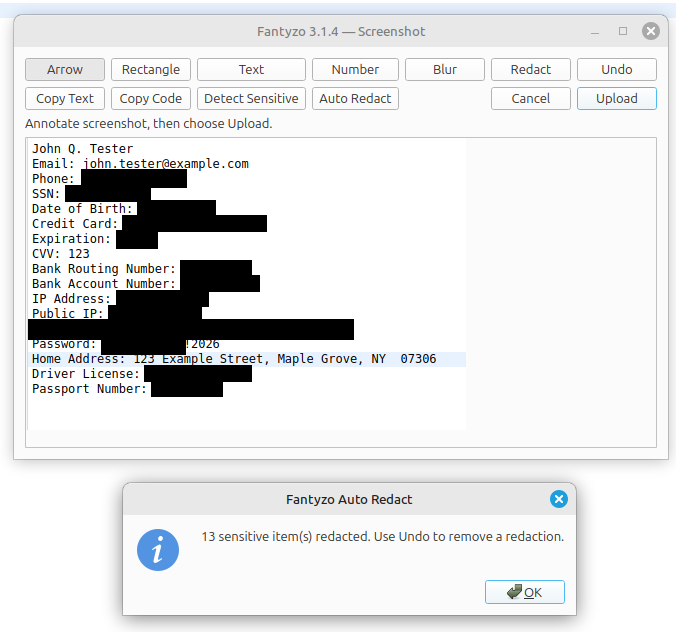
You can then review the screenshot and continue editing it with Fantyzo's normal annotation and manual redaction tools before uploading or sharing it.
Always review before you share
Detect Sensitive and Auto Redact are designed to assist you, not replace your judgment.
No OCR or automated detection technology is perfect. Text can occasionally be misread, a sensitive item may not match a recognized pattern, or something important may simply be missed or only partially covered.
A useful workflow is:
- Run Detect Sensitive to review what Fantyzo sees.
- Run Auto Redact to speed up the protection process.
- Inspect the final image yourself.
- Add any missing redactions manually before sharing.
Privacy without slowing down your workflow
The goal is simple: make protecting information part of the screenshot workflow rather than something you have to remember afterward.
Capture → Detect → Auto Redact → Review → Share
That extra review can take only a few seconds, and those few seconds may prevent information you never intended to share from leaving your screen.
Fantyzo — Save privately. Share deliberately.